
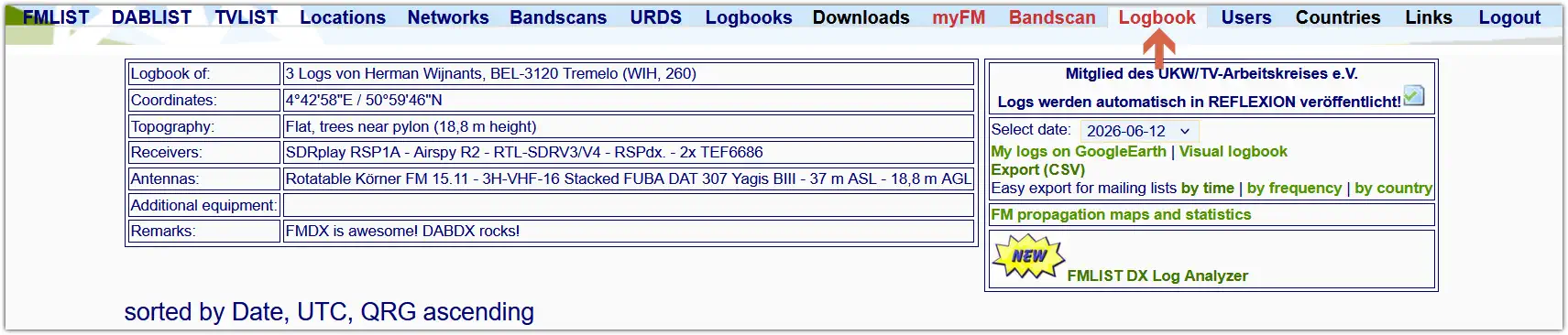
The data from fmlist.org, uploaded by numerous FM enthusiasts, is a treasure trove of information, providing users with insights into their own logs, those of other users, or logs from a particular ITU region or continent.
To access the logbook, users must have an fmlist.org account and be logged in, or have cookies enabled.
Have a look at the FM LOG CONVERTER, FM LOG ANALYTICS TOOL and the
FM DX EXPLORER.
These tools can be downloaded below or started as an all in one FM & DAB Toolkit.
The Toolkit also includes DAB+ toolkits like DAB DX EXPLORER, DAB LOG CONVERTER and DAB LOG ANALYTICS.
The workings of these DAB+ tools are the same as the FM tool, explained below.
The tools are HTML webpages. You can just download them, run them in your browser and start inputting data.
FM LOG CONVERTER
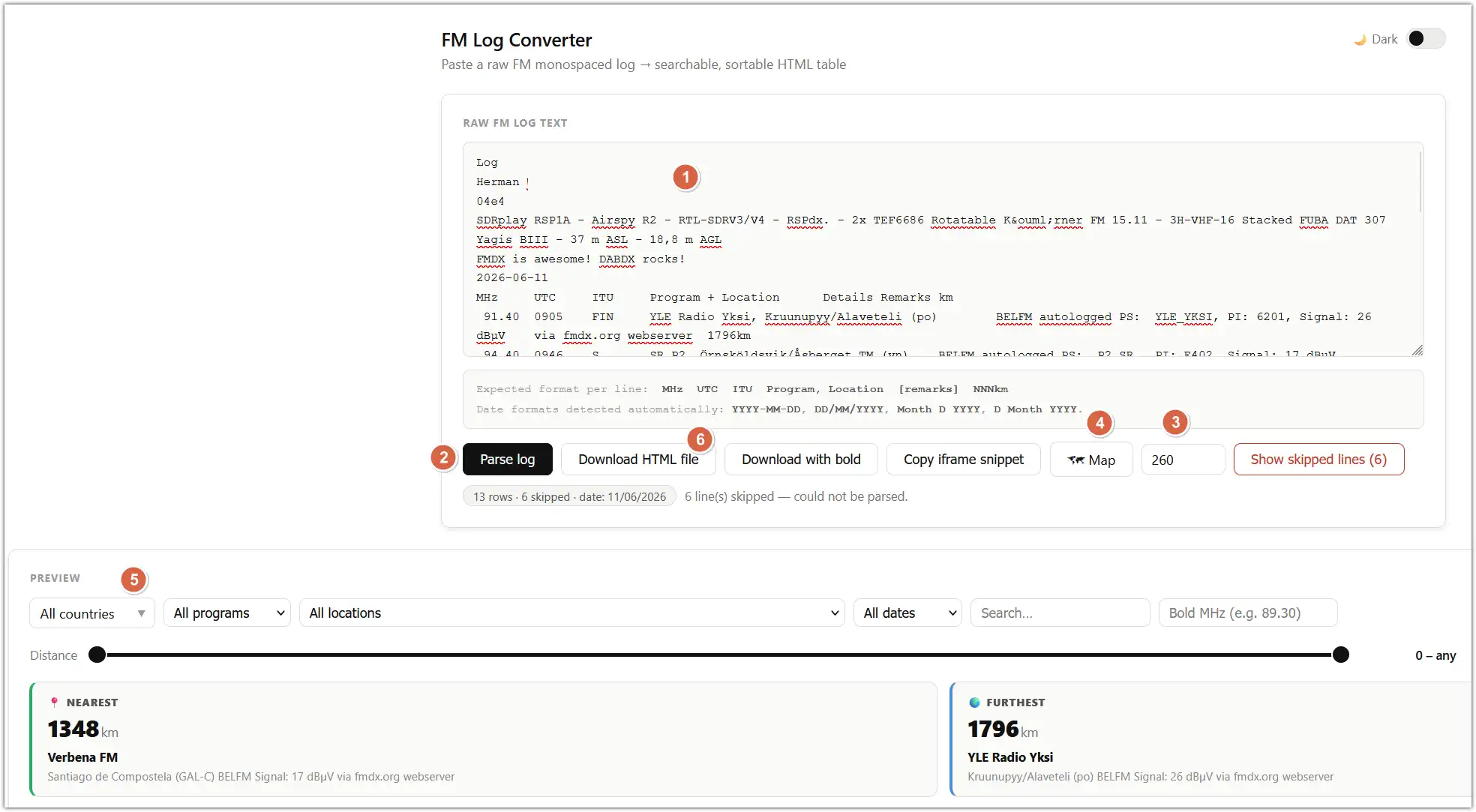
The FM Log Converter is intended to turn your logs of a particular date or dates into a nice (web)page with some cool sorting options, a distance slider, a summary and a map pulled from the fmlist.org.
To generate such a page just open de converter and paste the .txt files downloaded from the fmlist logbook in the
(1) RAW FM LOG TEXT window.
(2) Now Parse log your input.
(3) Time to input your OMID from your fmlist account.
(4) The fmlist map with your logs now appears. Mind you: no OMID, no map!
(5) A preview is generated and you can check out all options like clickable blocks, distance slider, sorting and more.
(6) The Download HTML file will make it easy to share you logs in a (web)page like this from May 24 2026.
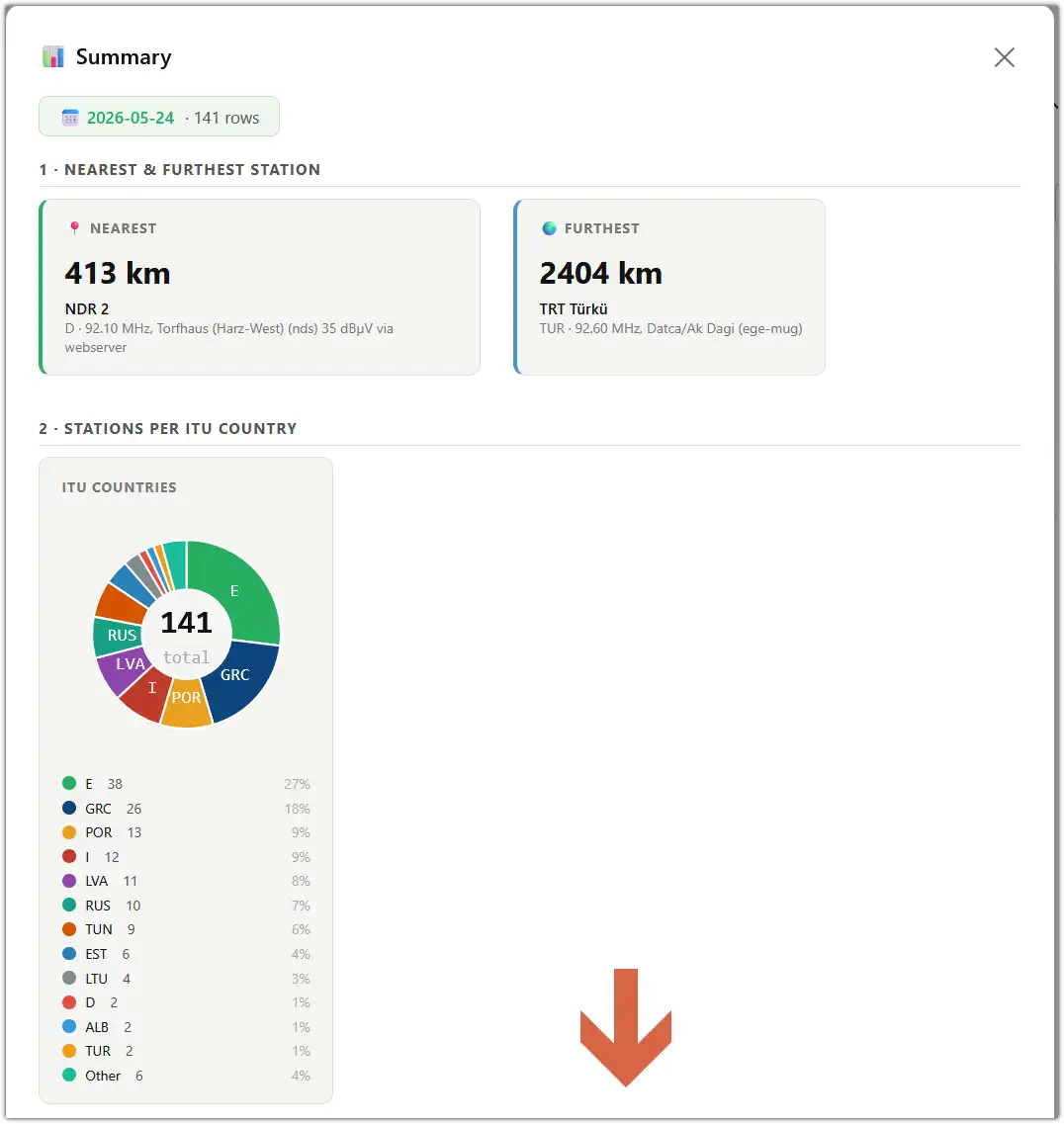
The ‘Download HTML file’ page features a Dark/Light mode, just like the FM Log Converter and also a Summary with statistics and a pie chart.
Open or save the FM LOG CONVERTER.
Back to the top of this page.
FM LOG ANALYTICS TOOL
The FM LOG ANALYTICS TOOL makes it easy to examine logs from several dates and especially from many years.
Download all your logs from the fmlist.org logbook in one .txt file and start exploring.

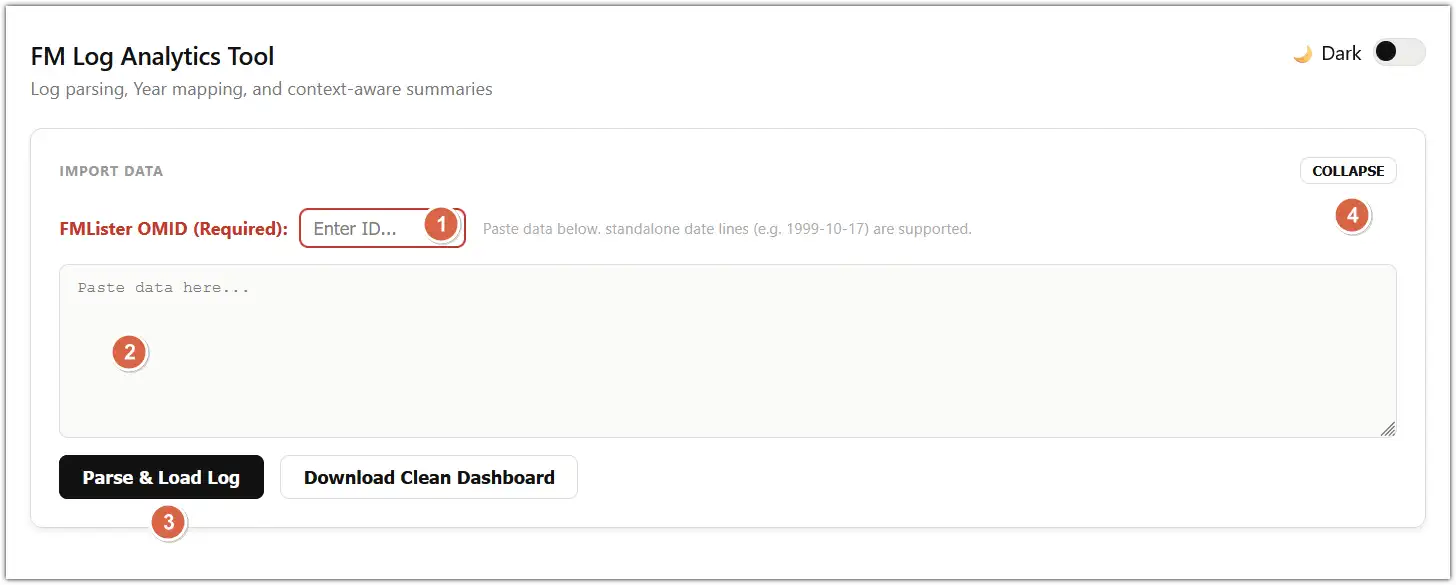
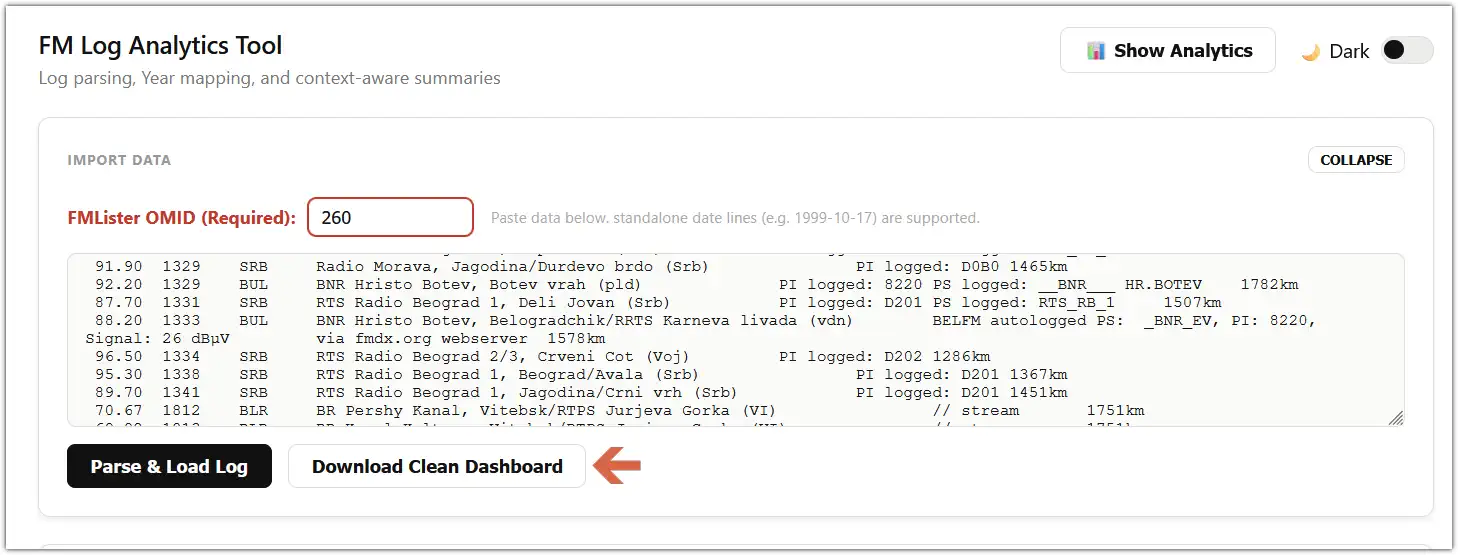
(1) Make sure to fill in your OMID.
(2) The paste the content of your download .txt logfile. It can take a while if your import file 10000 or more entries.
(3) Parse & Load Log.
(4) Mind the IMPORT DATA block will now COLLAPSE, but can be expanded with the same EXPAND button.
In the DATA EXPLORER users see maps for all the years with logs. Changing the (1) ‘All countries’, (2) ‘All dates’ and (3) ‘Search logs…’ will generate different maps from the fmlist!
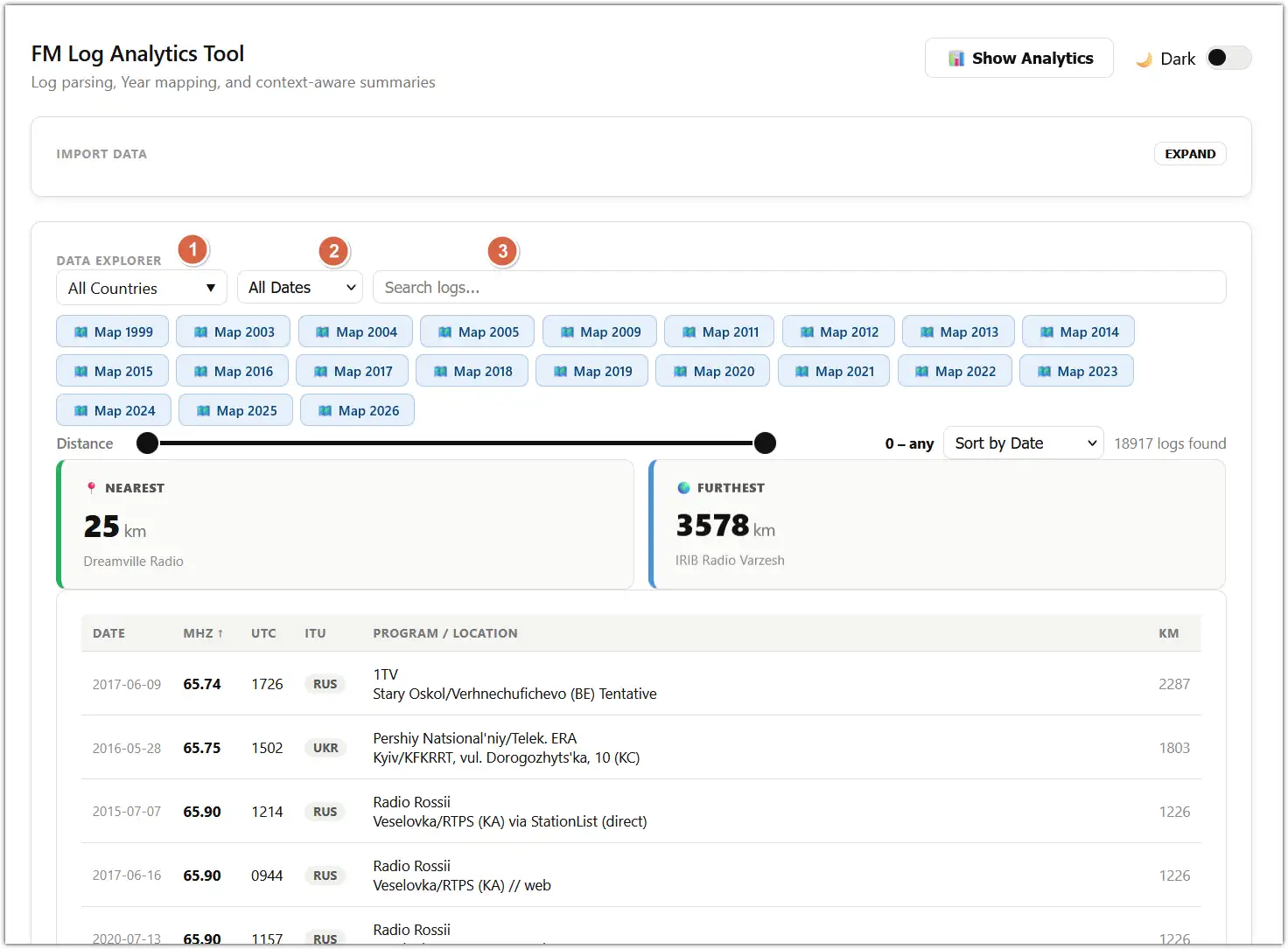
Just like the FM LOG CONVERTER there’s a distance slider and and a simple ‘Show Analytics’ button.
Do click on the ‘Nearest’ and ‘Furthest’ blocks.
Using the ‘Download Clean Dashboard’ keeps ALL data regardless of sorting, slider use … in a HTML file to save, share or incorporate in a webpage. The Analytics will be in the saved file too. Use the ‘View Analytics’ button.
The Analytics will be in the saved file too. Use the ‘View Analytics’ button. The table columns in this file are sortable.
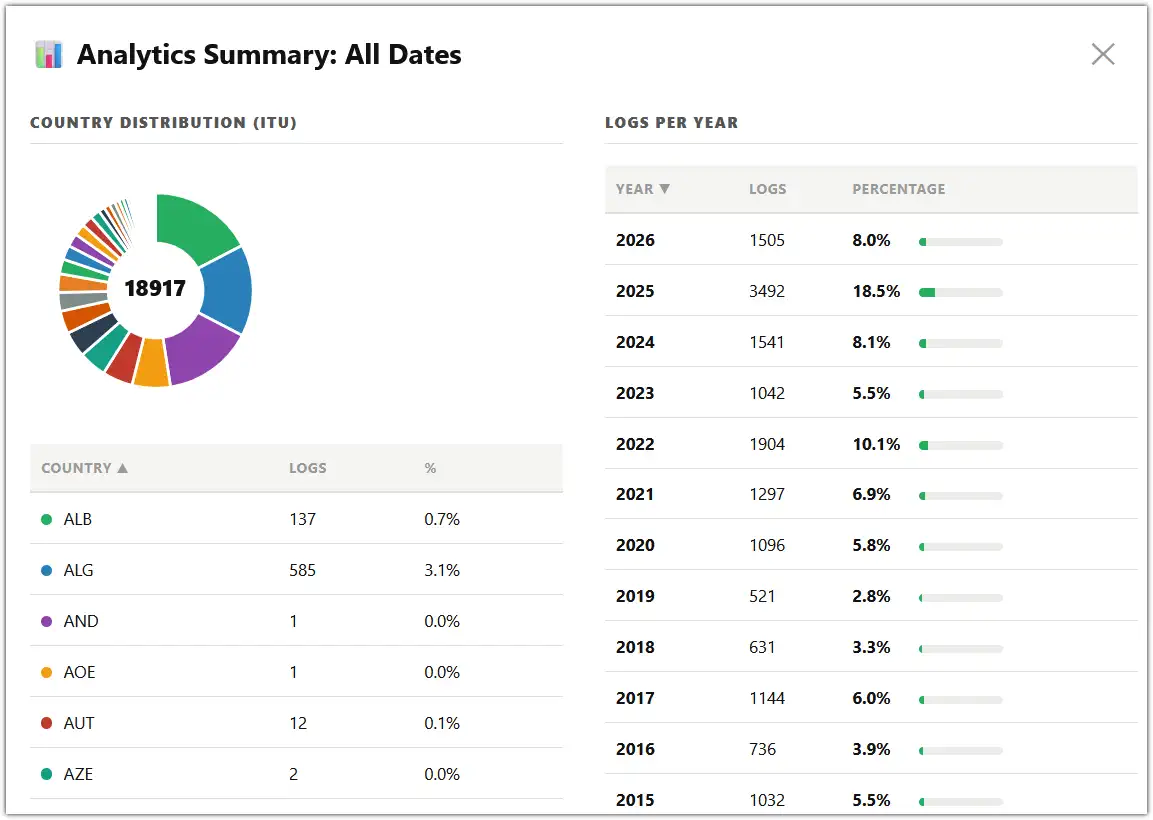
Check out this example of 2012-2013 analytics Dashboard.
Open or save the FM LOG ANALYTICS TOOL.
Back to the top of this page.
FM DX EXPLORER
Data from fmlist.org maps like this one can be cumbersome to sort through and analyse.
The FM DX Explorer takes a very different approach to analysing data. The user of the FM DX EXPLORER manually, but easily, copies the data at the bottom part of a fmlist generated map into this tool.
Data from a particular ITU or a particular OMID for a specific date or period can thus easier be sorted, analysed and checked.
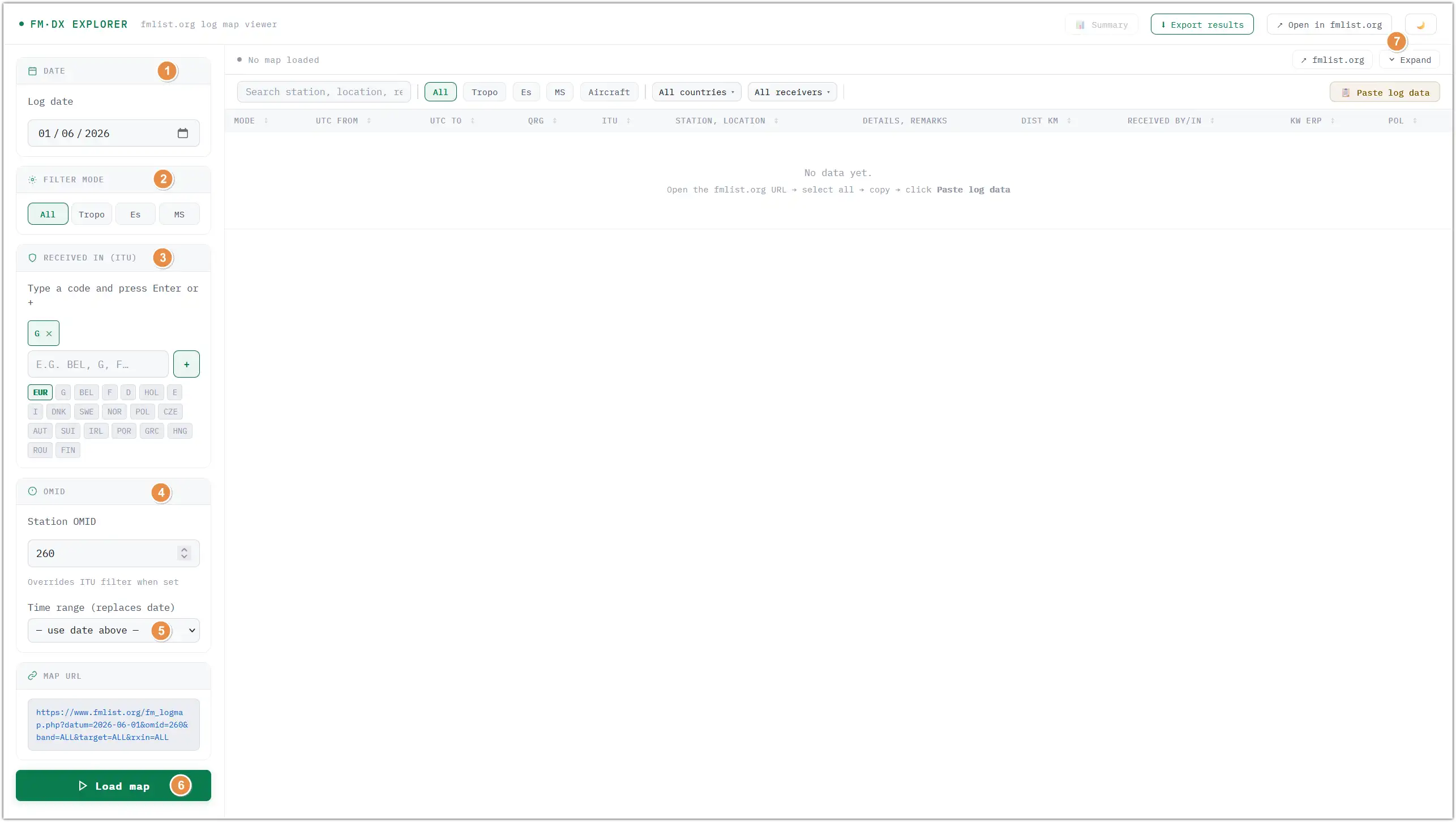
(1) Input the desired date. You cannot choose more than one date as this is not allowed on a map page either.
(2) Choose a filter mode if wanted.
(3) Click to indicate the desired ITU choice.
(4) Fill in an OMID to check logs from an individual logger. This will overrule ITU input (3)!
(5) After filling in an OMID the user can set a time range and this will overrule the date (1).
(6) Load the map and make sure the map window is expanded (7).
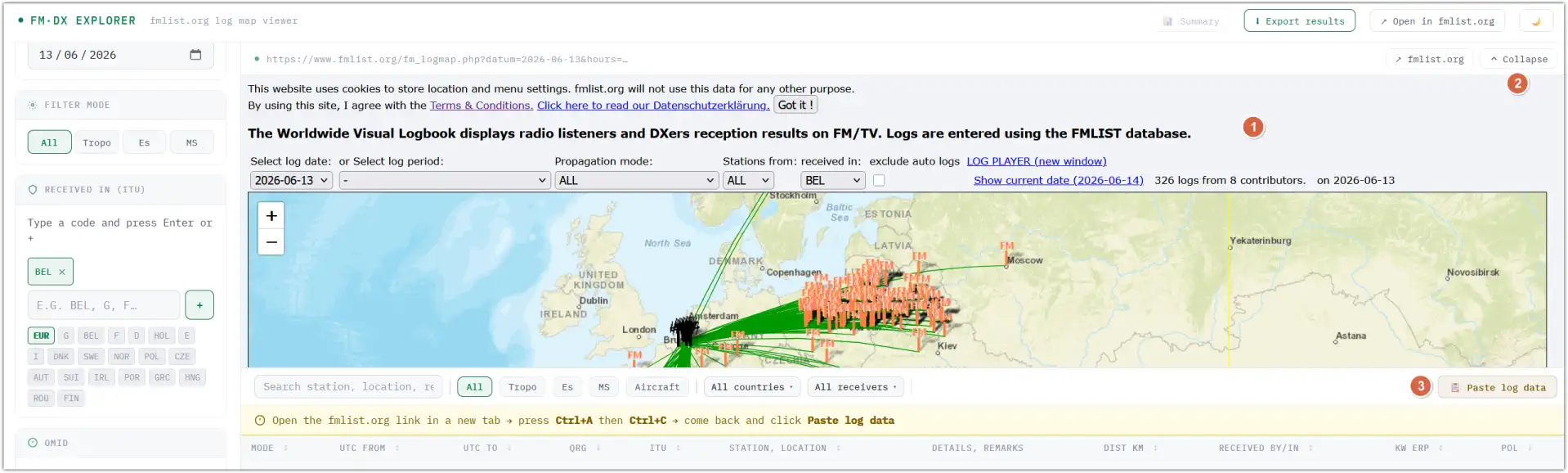
(1) After loading the map a fmlist map frame will be filled.
(2) Make sure this map frame is expanded!
(3) Click anywhere in this frame and select everything (Ctrl+A) and then click on ‘Paste log data’ as shown in the next screenshot.
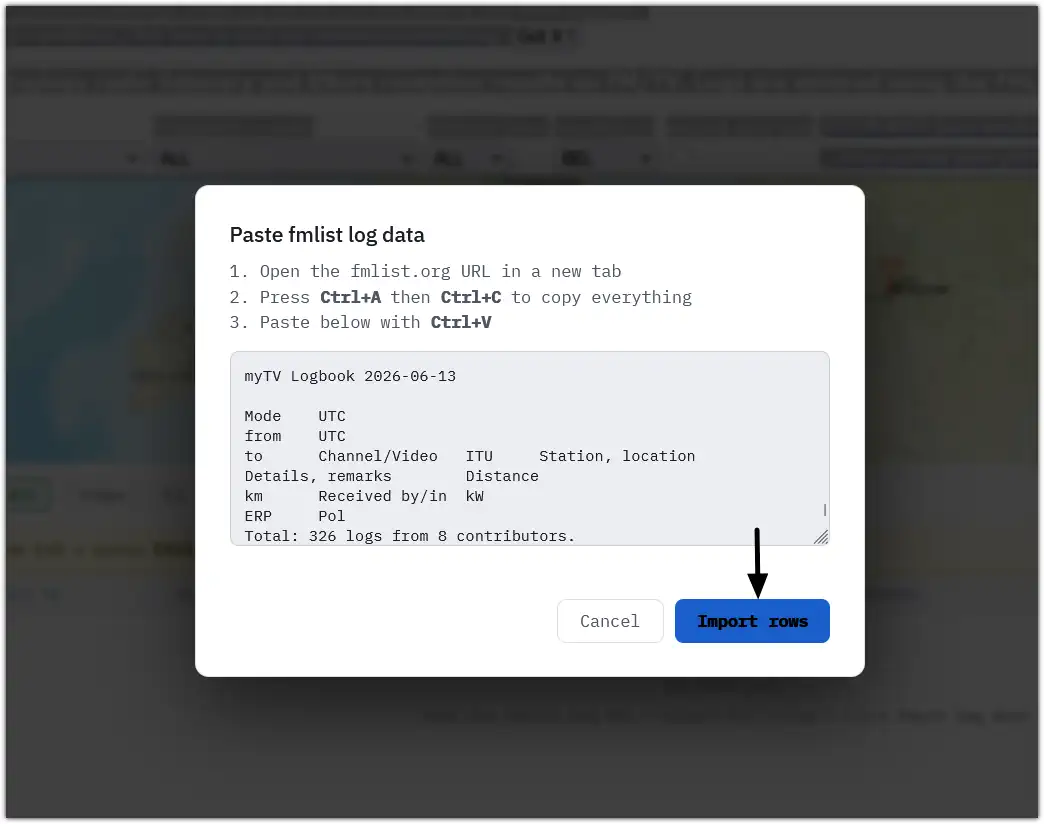
The FM DX EXPLORE will now show the user a table with all the data from the fmlist map.
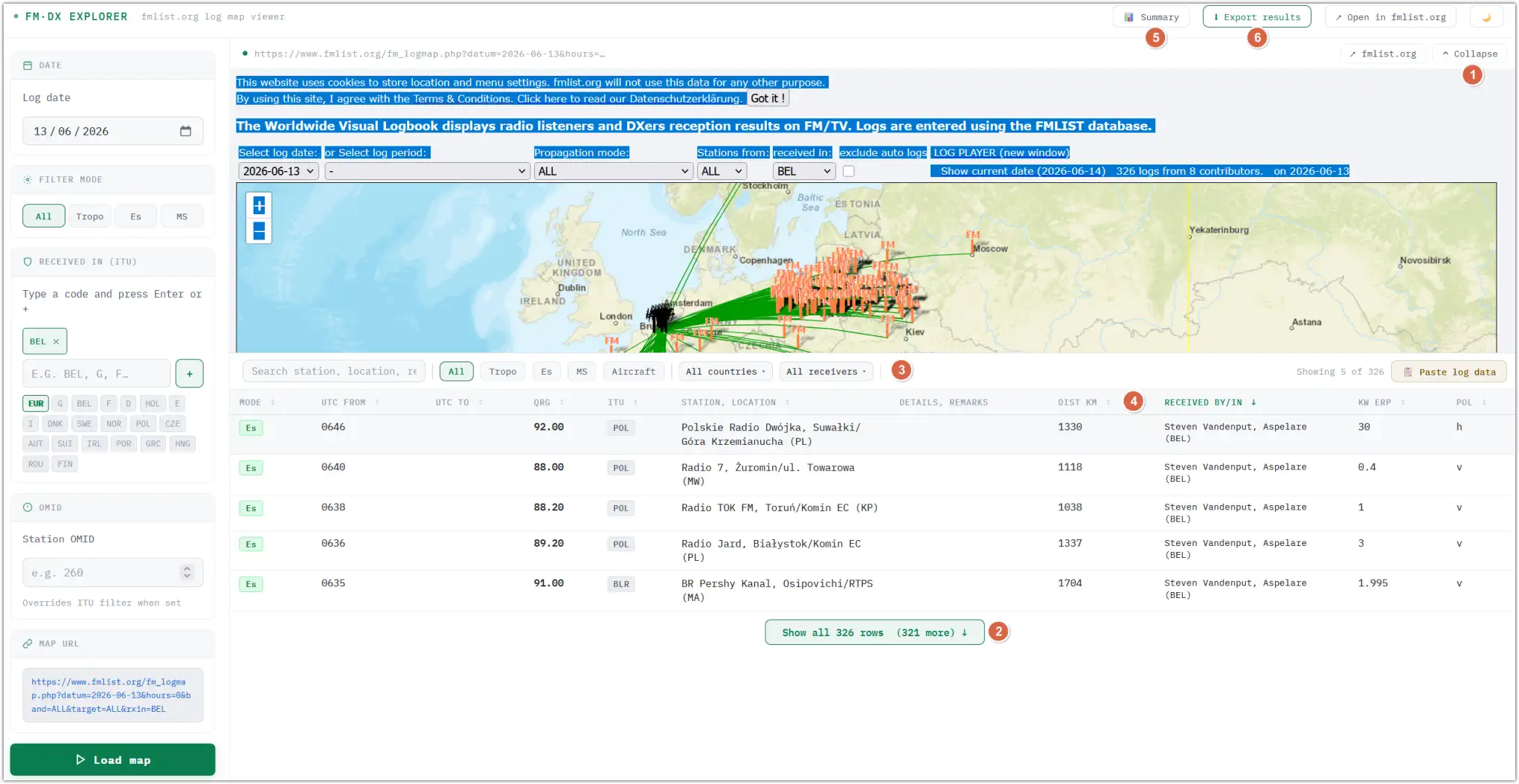
(1) Collapse the map frame for better data viewing.
(2) Expand the rows.
(3) Search, filter and use the ‘All countries’ and ‘All receivers’ drop-downs to handle the data.
(4) The table headers can be sorted.
(5) There’s a summary and a
(6) Export results option.
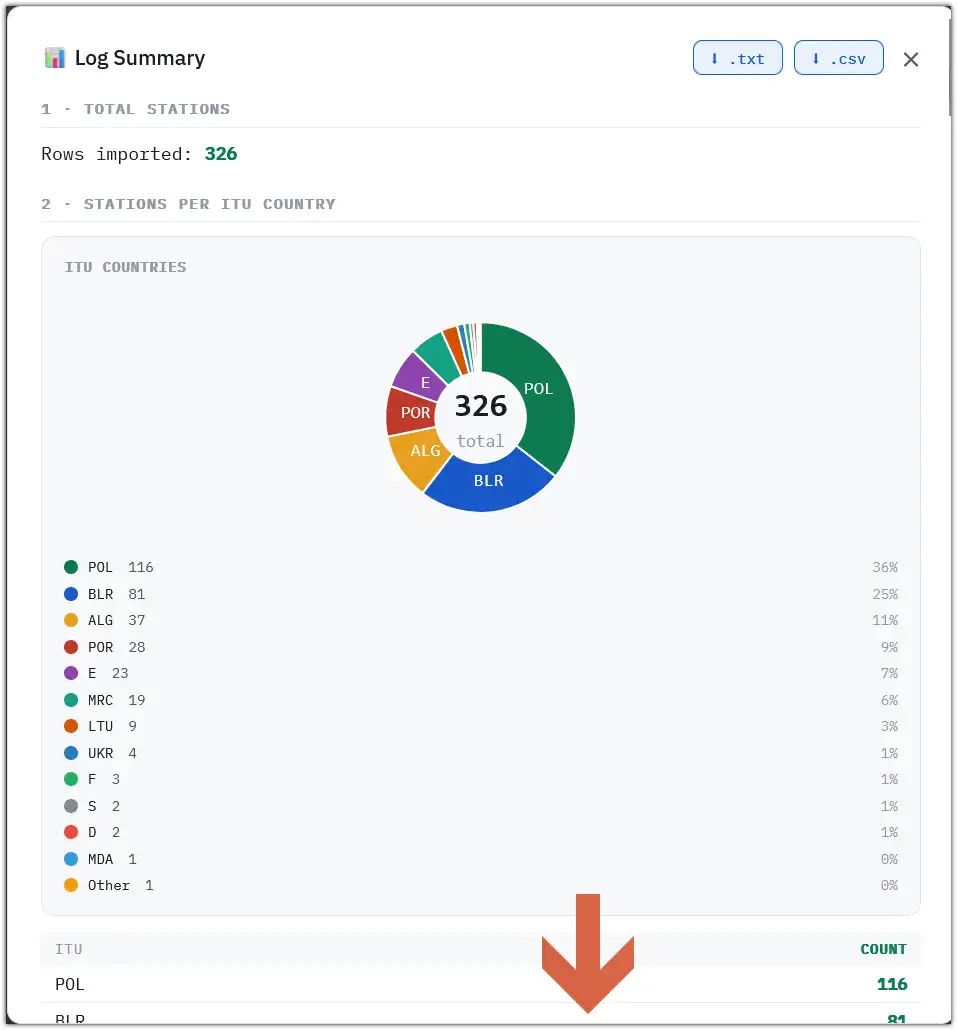
The Summary can be set for all ‘receivers’ or selected ones and will show the user statistics and pie charts showing data like ‘total stations’, ‘stations per ITU country’ (pie chart and count), ‘Furthest received station’, ‘Nearest received station’, ‘Stations per ITU for each receiver’ (pie charts), ‘Received by/in ITU Breakdown’ count, ‘Stations per propagation mode’ and ‘Most received frequencies QRG’ counts.
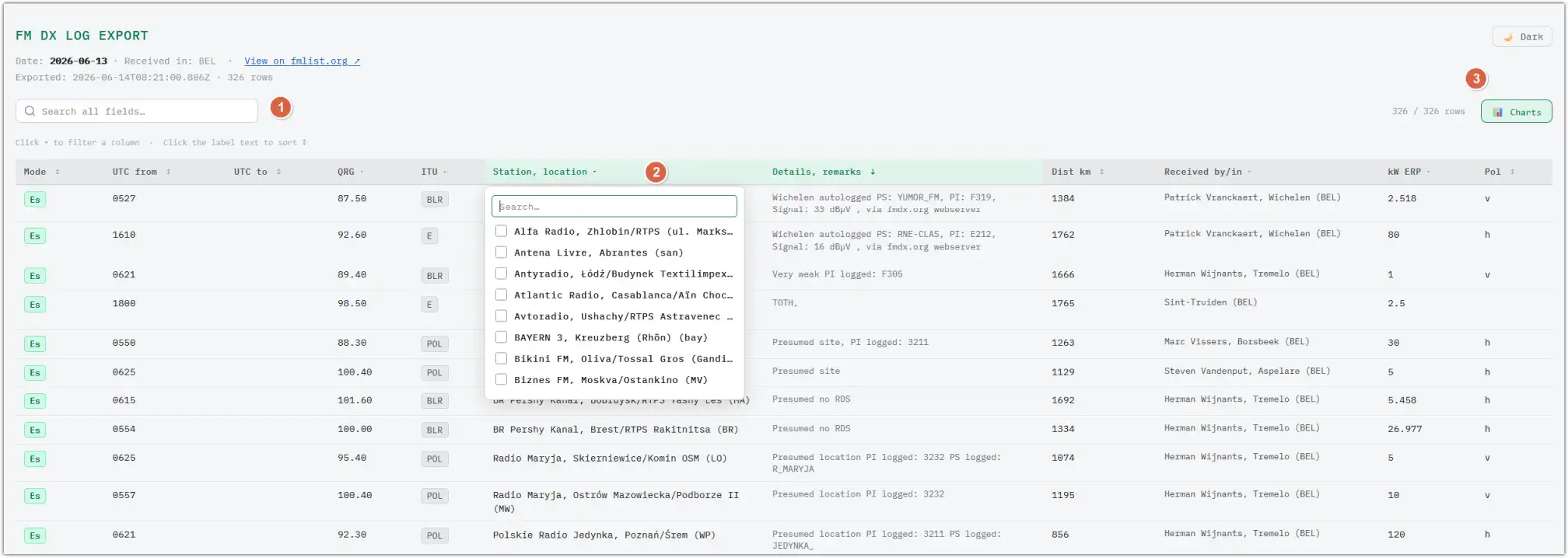
The ‘Export results’ option in the FM DX EXPLORER save all data in a separate .html download file which can be opened in any browser.
There’s a search box (1), sortable and drop-down headers (2) and Charts (3).
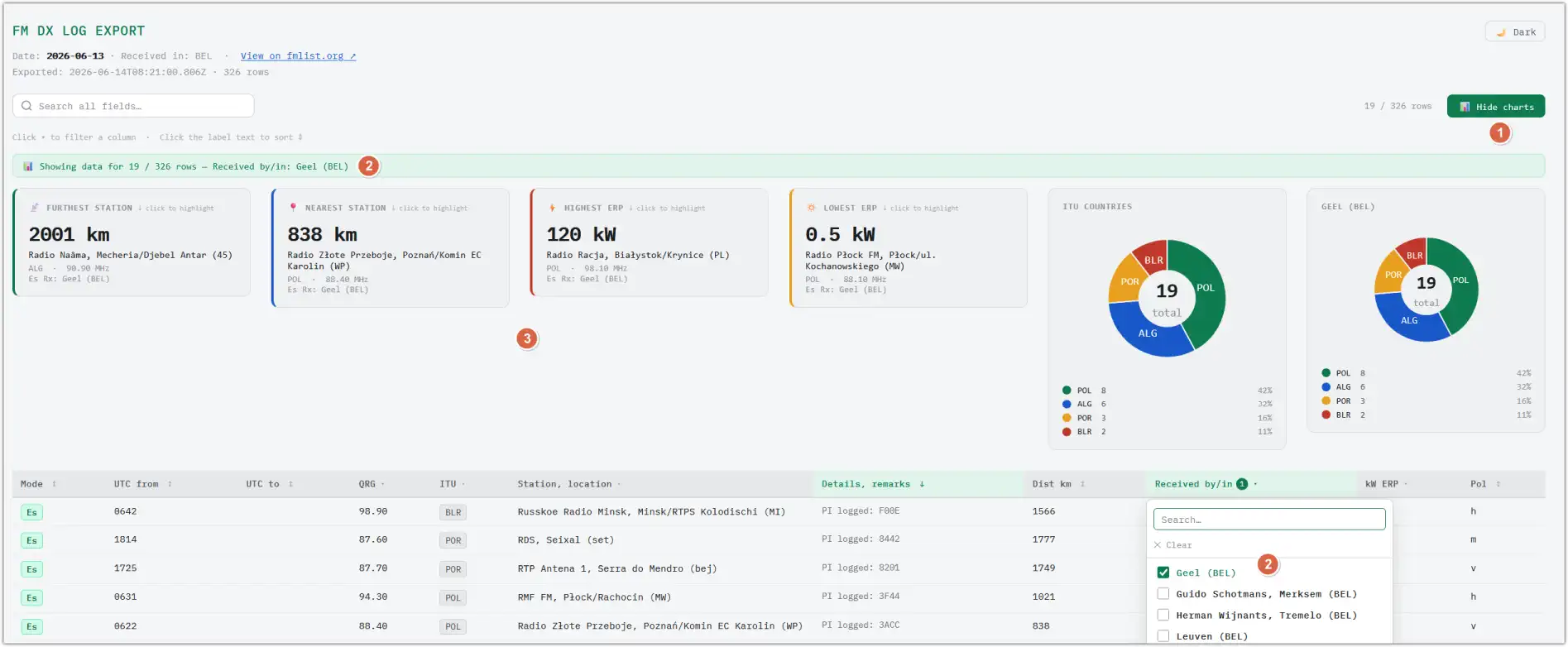
Hitting the ‘Charts’ button (1) in the download file will pop up a frame with lots of pie charts. Choices from the headers drop-down (2) will generate different pie charts.
Besides the nearest and furthest station click boxes (3) there are also highest and lowest ERP ones, again generated according to the drop-down choices. Click and jump to the station in the table.
Open or save the FM DX EXPLORER.
Back to the top of this page.