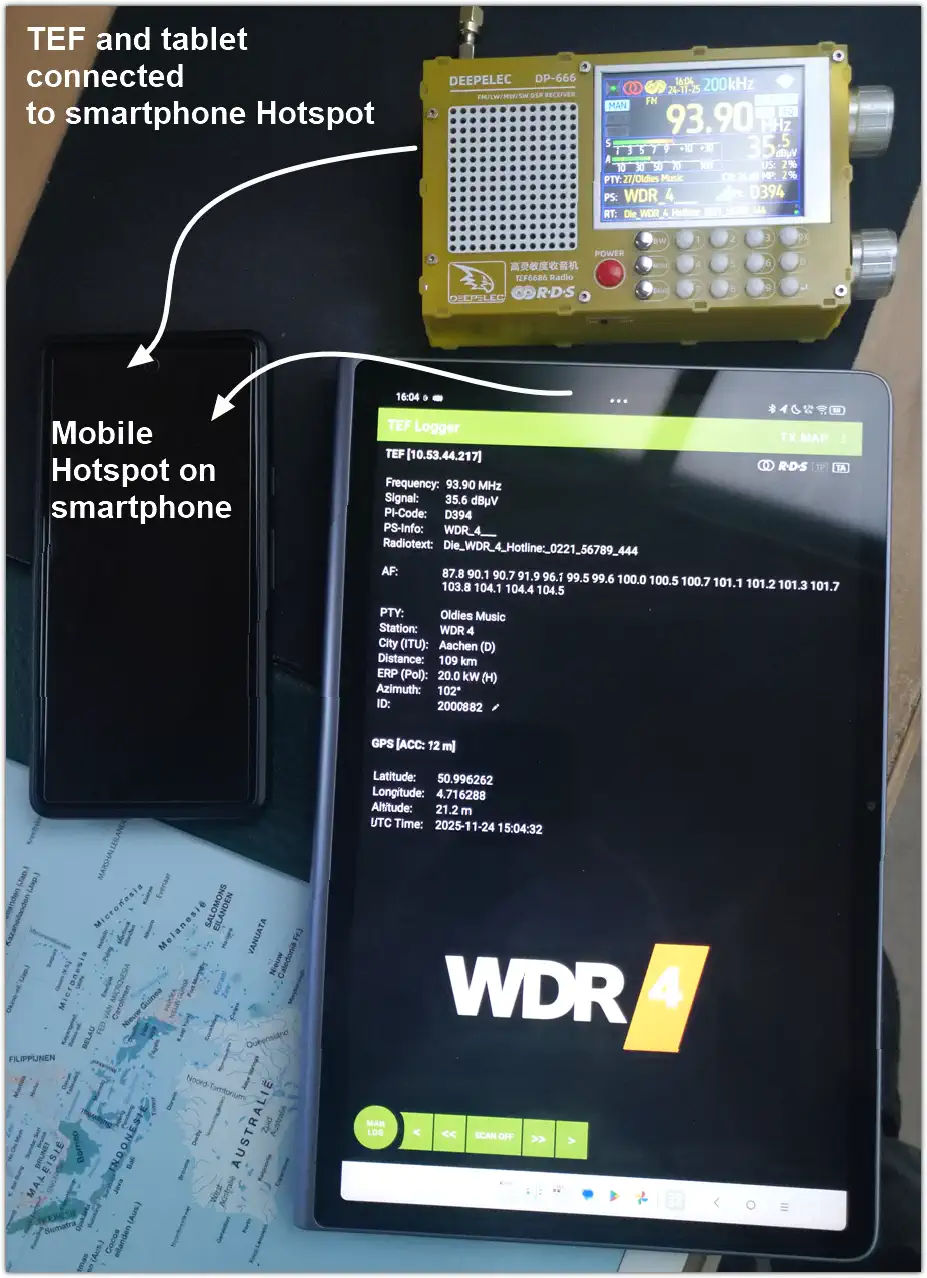
As outlined in a previous post by Guido Schotmans , connecting your TEF6686 to a local network is a straightforward process. In this TEF Logger App setup, I am using a metal cased TEF6686 and a Deepelec DP-666. The TEF Logger App does not run with a Headless TEF! The Deepelec unit offers a superior Wi-Fi range compared to the metal-cased TEF6686, allowing the hotspot to be positioned up to approximately 1.5 meters away from the smartphone.
For enhanced flexibility, consider installing the TEF Logger App on your smartphone and connecting it to a mobile hotspot via the same device. This setup enables you to operate the app from virtually anywhere.
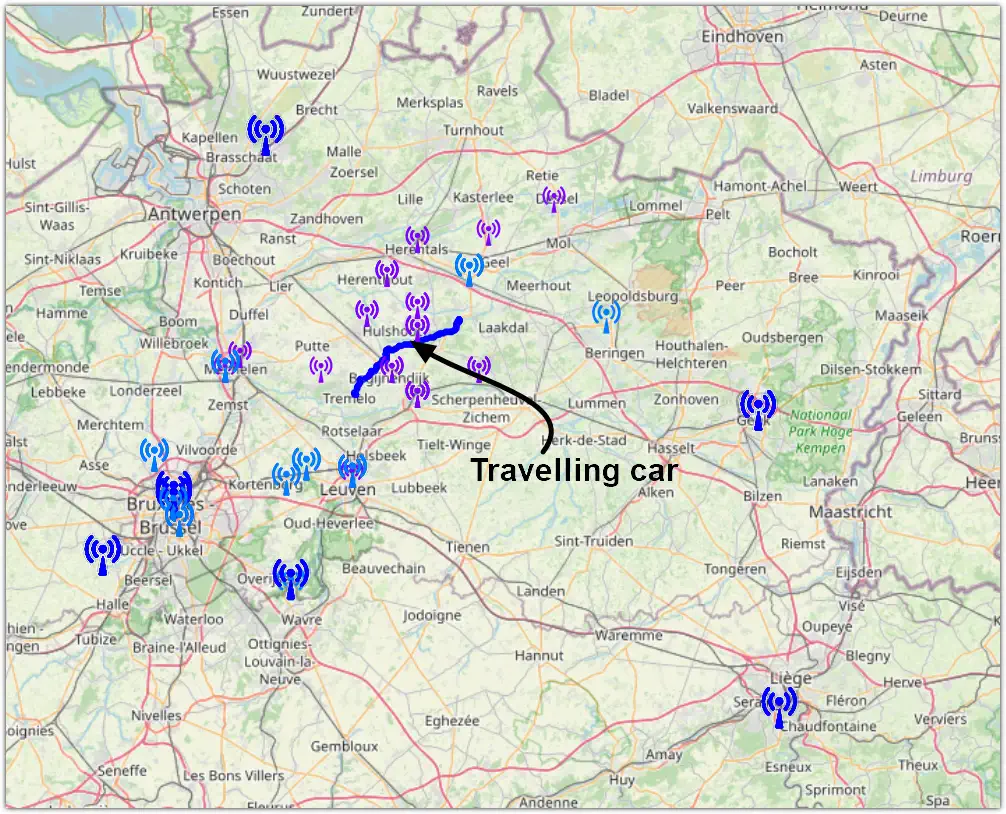
It also facilitates continuous logging while in a moving vehicle, making it a valuable tool for band analysis. Please remember to prioritise safety and stay attentive to the road.
Additionally, the TEF Logger App can be installed on a tablet if you prefer utilising a larger display. Once the app is configured on your smartphone, transitioning to a tablet is seamless, allowing for an improved user experience: just connect the tablet to the hotspot and start the TEF Logger App on the tablet.
Download the TEF Logger App via this link. Please note that you may see a security warning during installation and may need to temporarily disable device protection to complete the process.
TEF Logger App on tablet connected via Hotspot on smartphone
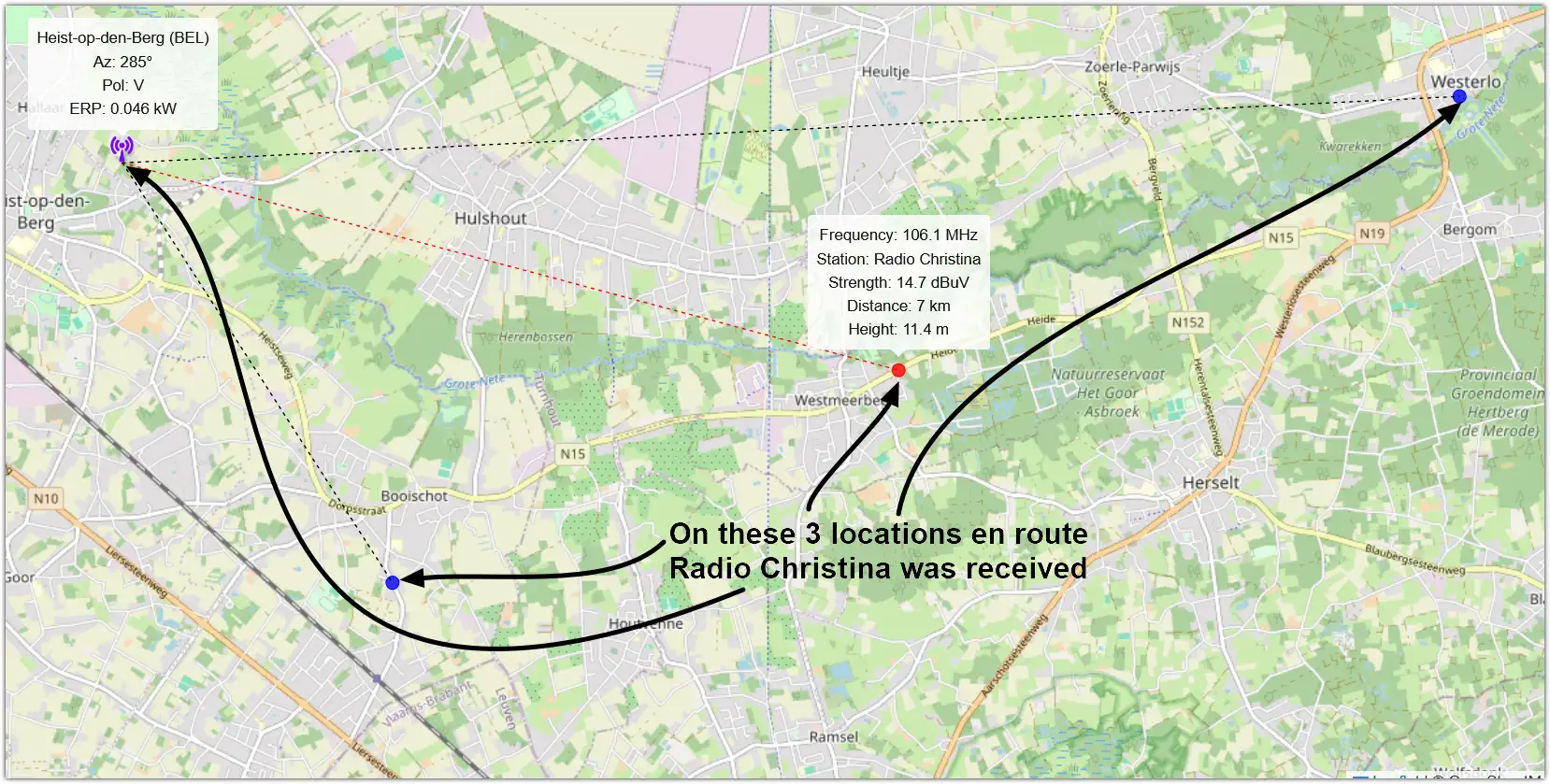
Logging in a travelling carDetail of the travelling car log
The TEF Logger App is compatible exclusively with Android devices and requires a smartphone with relatively recent specifications.
Play video 1 featuring intro and settings. Play video 2 featuring the map and streams. Play video 3 featuring navigating the dial and logging. Play video 4 featuring checking out the logs.
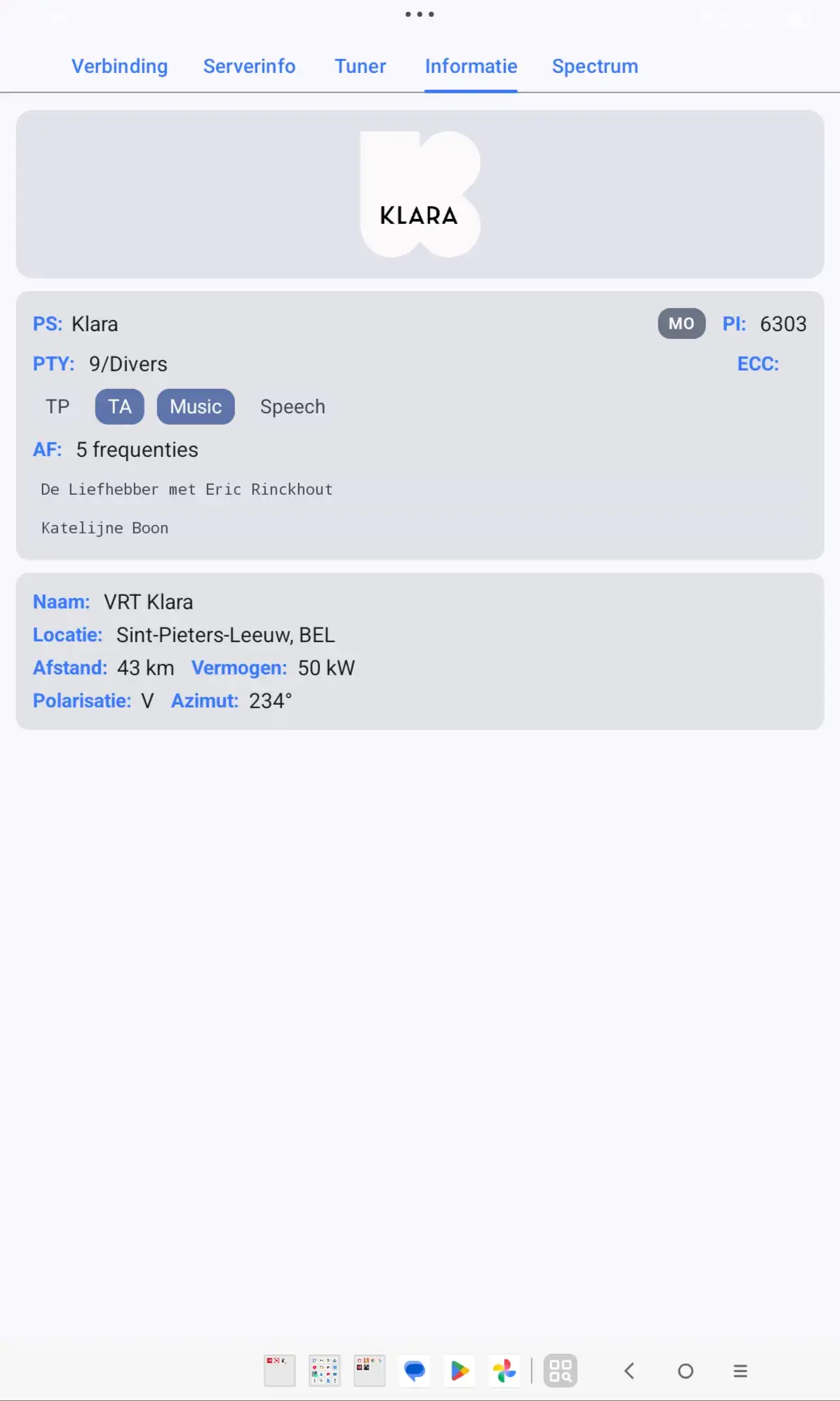
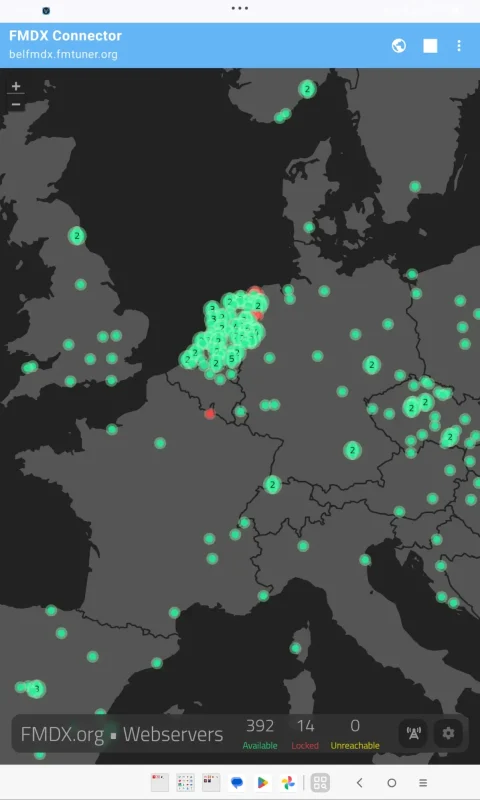
There are several other interesting applications available for your phone or tablet. Consider exploring the FM-DX App and the FMDX Connector.
FMDX-AppFMDX Connector
This blog post offered a concise overview of the TEF Logger App. For comprehensive guidance, please refer to the detailed manual available from the developer, Highpoint2000 TEF Logger App detailed manual!
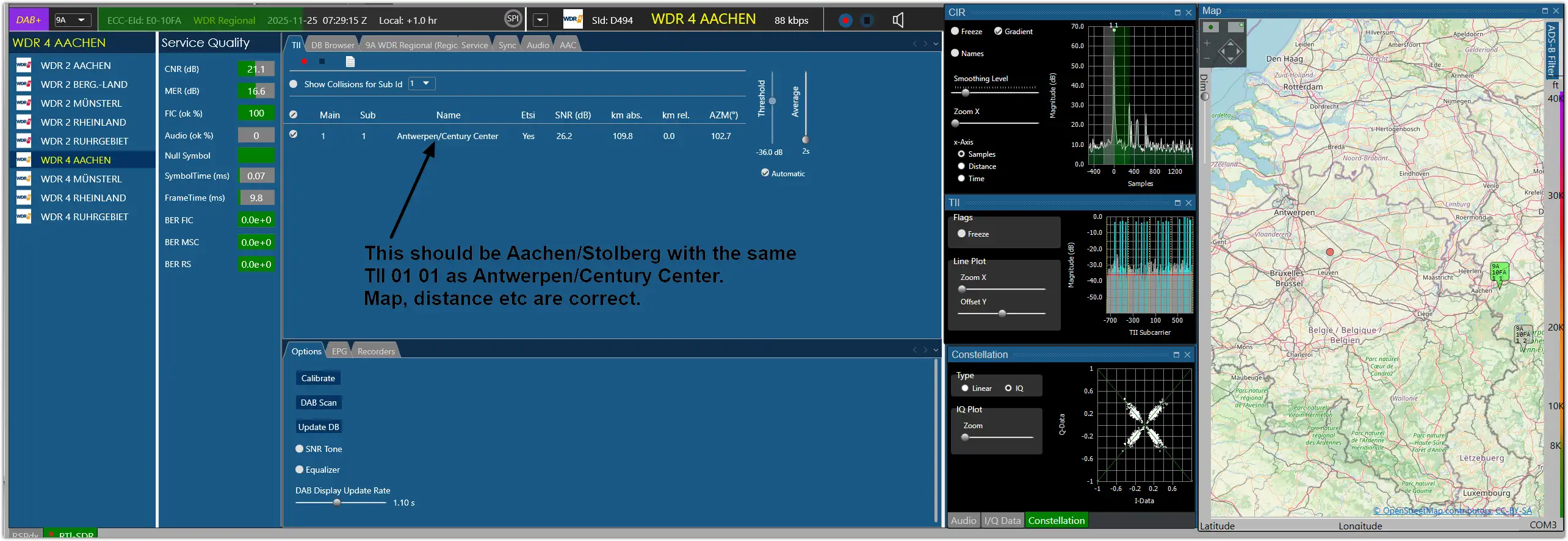
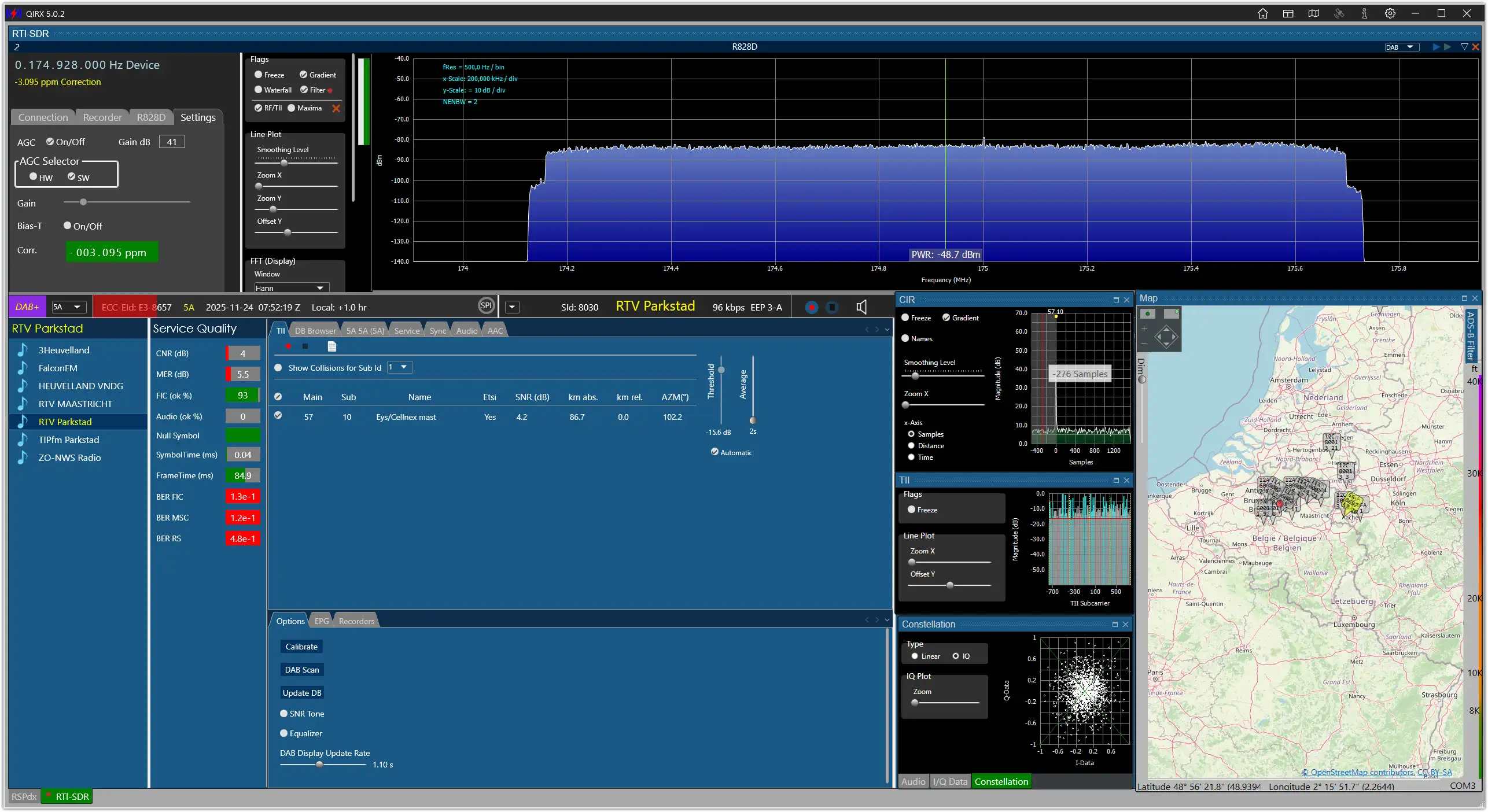
An old and naughty bug was discovered and fixed in today’s 5.0.2 download. In my case 10A DigiRadioAntwerp has a TII value of 01 01 for the Antwerpen/Century Center location. When switching to 9A WDR Regional it also shows Antwerpen/Century Center for the 01 01 TII value and not Aachen/Stolberg. It also works the other way around showing Aachen on 10A. Values like AZM, km and the map were always generated correctly. Download the latest and fixed QIRX 5.0.2 by Clem Schmidt here.
Guido Schotmans wrote a short manual on how to connect your TEF6686 to your local network and check out the logs made with the TEF. It works on the metal cased TEF6686 and on the Deepelec DP-666. Both are running ESP32 firmware by Sjef Verhoeven. How to proceed?
First make sure your computer is connected to Wi-Fi (Not LAN).
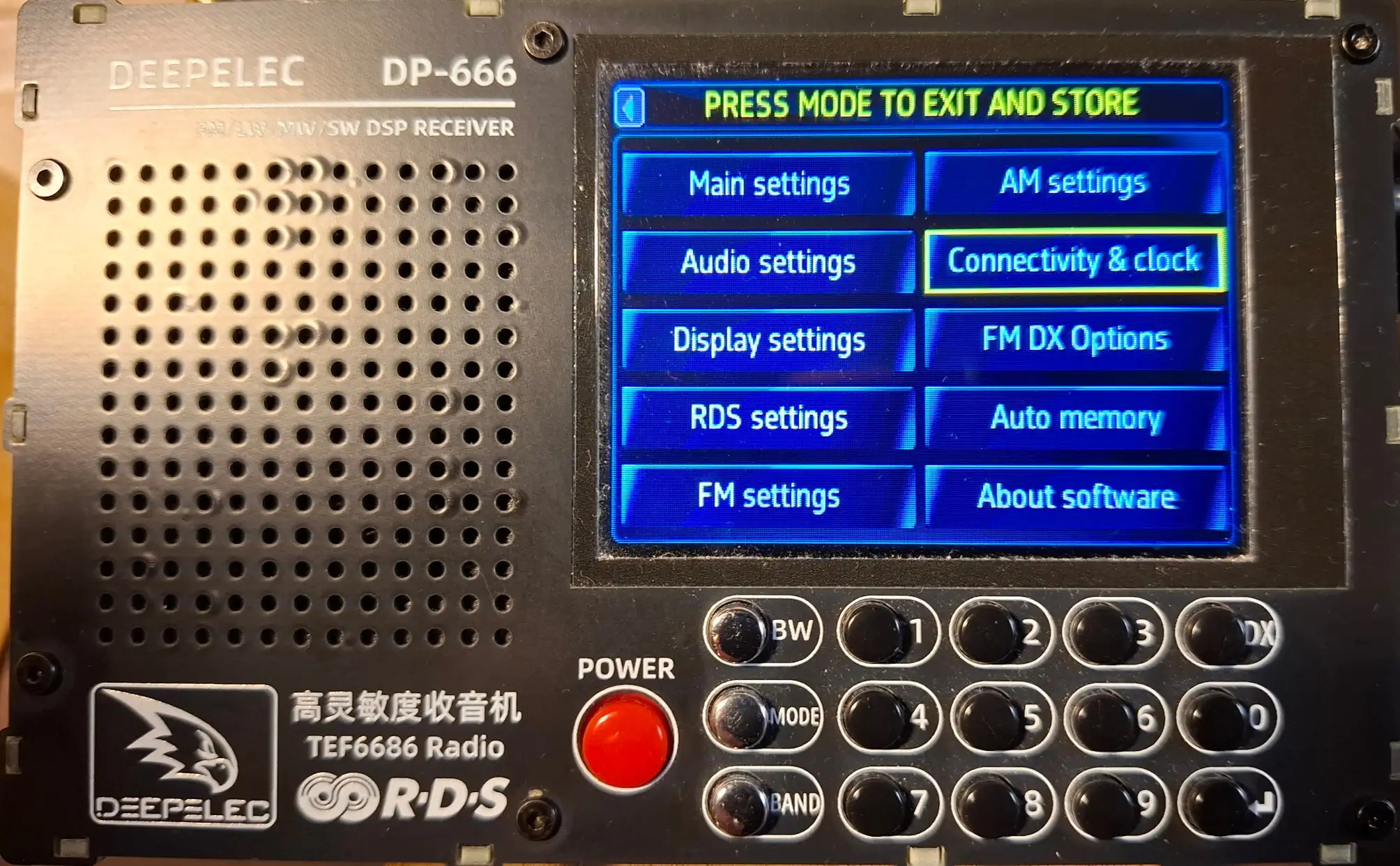
Switch the radio on and hold (long push) the MODE button.
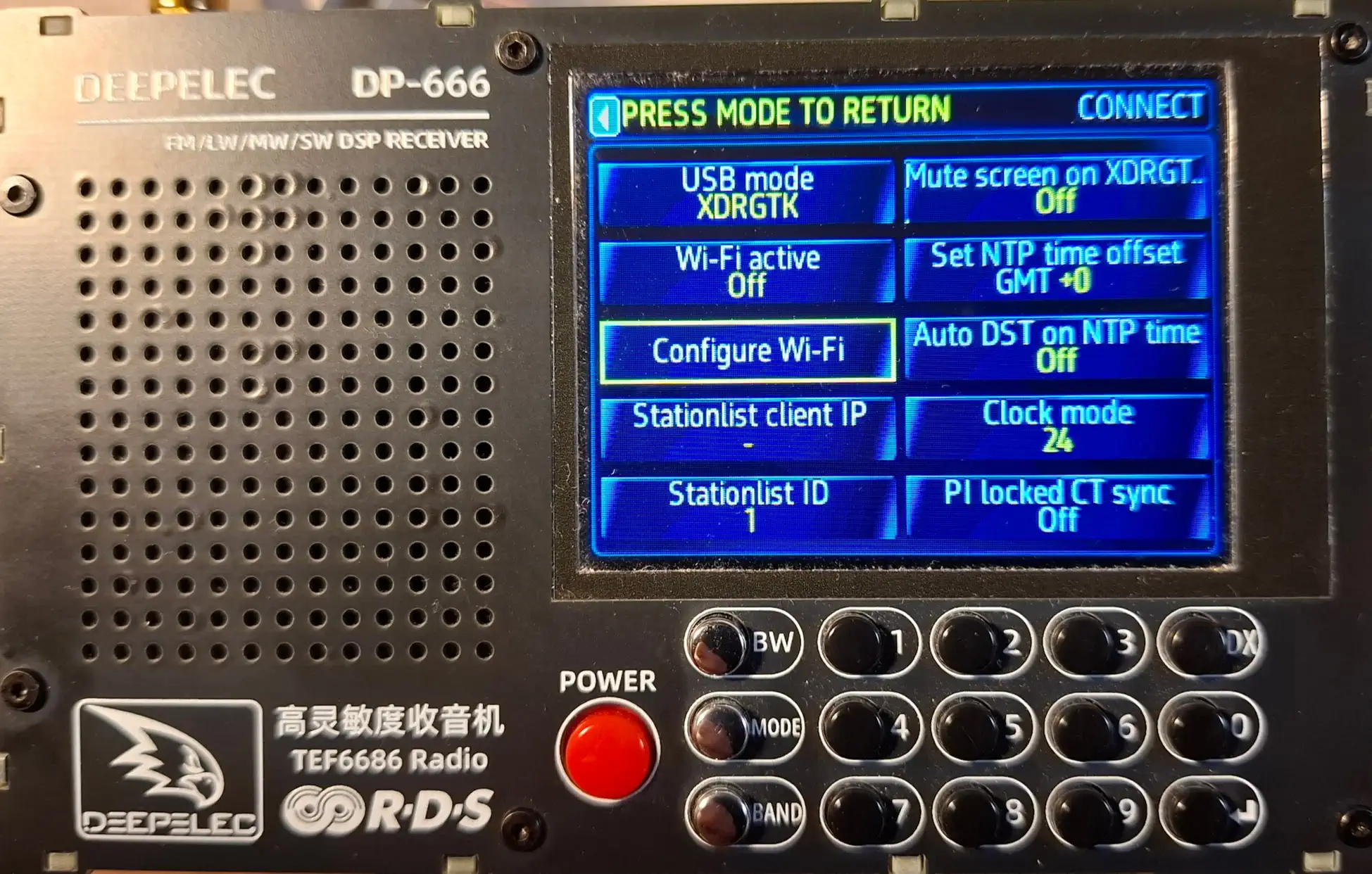
Go to Connectivity and Clock.
Connectivity&Clock
Now choose Configure Wi-Fi.
Configure Wi-Fi.
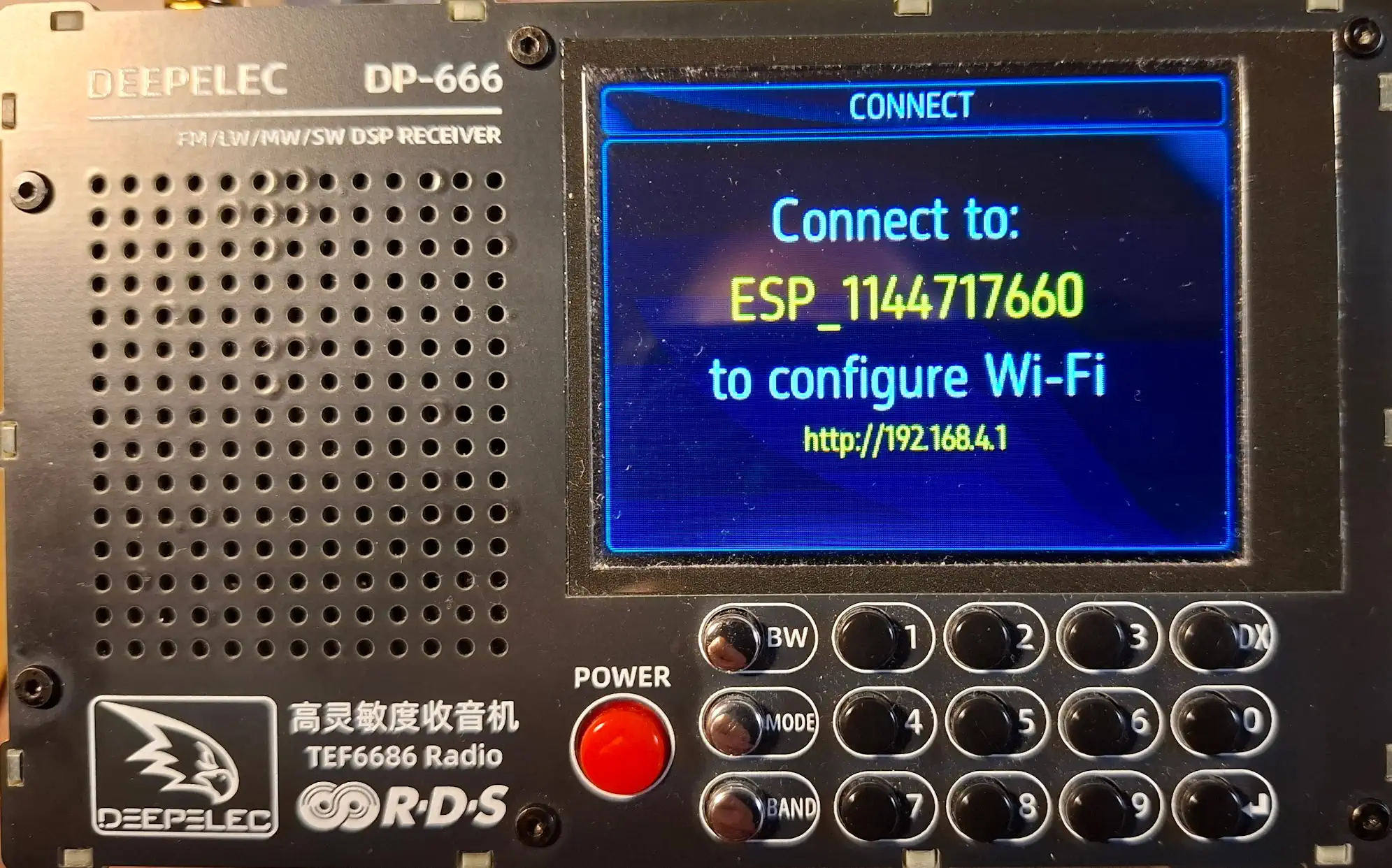
This will appear on the radio screen.
Connect to this Wi-Fi(ESP_xxxxxxxxxx)
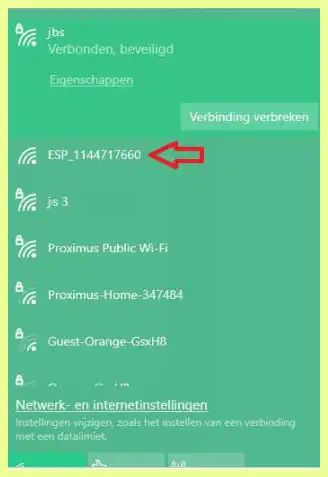
Connect your Wi-Fi to the ESP_xxxxxxxxxx number shown on the screen.
Connect to this network
In your browser go to http://192.168.4.1 (in the address field, not the Google search field).
Click on Configure Wi-Fi (Auto scan). This can take a while.
Click on your own Wi-Fi Network.
Enter your W-Fi Password (other fields can be left blank).
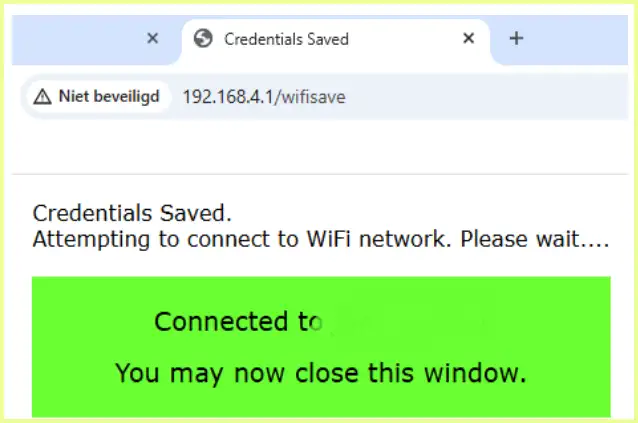
Click Save and Connect (if nothing happens, go again to the main screen of your radio).
TEF connected
If you now type the IP address in your browser that is shown in Connectivity and Clock (not the station list client IP – be sure to be on the main page on the radio when trying to connect) you will see the result of the scan (if you have done already one). See FM-DX menu for options.
Keep in mind that when you start the radio and this Wi-Fi network is out of reach it will take a lot longer to start because of the unsuccessful Wi-Fi search.